
August 12, 2026
QR Code Not Scanning? 15 Troubleshooting Tips
By Said Ouarrak · Founder
Your QR code is not scanning. Before you reprint anything, know this: in the hundreds of tests I have run across devices in different lighting, nine out of ten failures trace back to the same handful of causes — size, lighting, glare, contrast, and damage to the corner finder squares.
This list walks through all 15 causes in order of how often I actually see them, with the fix that worked in practice for each.
1. QR Code Is Too Small
Problem: The QR code is smaller than 1 cm (0.4 inches) and the camera can't resolve the individual modules.
Fix: Increase the QR code size. For most print applications, 2-3 cm (0.8-1.2 inches) is recommended. For digital displays, the QR should occupy at least 10% of the screen width.
2. QR Code Is Too Large
Problem: The QR code doesn't fit in the camera frame. The scanner can't see all the modules, especially the finder patterns in the corners.
Fix: Move farther away from the QR code. The code should fit entirely in the camera view with some margin.
3. Insufficient Lighting
Problem: QR codes need good contrast. In dim light, the camera can't distinguish black modules from white modules.
Fix: Turn on additional lighting. Many phones have a flashlight feature in the camera app. Avoid direct glare that creates hotspots.
4. Glare and Reflections
Problem: Glossy surfaces (laminated menus, phone screens, glossy magazines) reflect light and obscure QR modules.
Fix: Tilt the QR code or your phone to change the reflection angle. A matte finish or lamination reduces glare.
5. Blurry Camera Lens
Problem: A smudged or dirty camera lens reduces image quality.
Fix: Clean your camera lens with a soft, microfiber cloth. Even invisible smudges from fingerprints affect scanning.
6. Curved Surface
Problem: QR codes printed on curved surfaces (bottles, cylinders, rounded packages) get distorted.
Fix: Flatten the surface if possible. Otherwise, hold the phone parallel to the curve and scan from slightly farther away.
7. Too Close or Too Far
Problem: The QR code is outside the optimal scanning range for your phone.
Fix: The QR code should fill about 1/3 to 1/2 of the camera frame. Move closer or farther until the code fills this proportion.
8. Damaged QR Code
Problem: Scratches, folds, tears, or stains cover part of the QR code.
Fix: Try scanning from a different angle. If the damage is minor (under 15-30% depending on error correction), the QR code may still work. For important QR codes, use Level Q or H error correction.
9. Low Contrast
Problem: Light-colored QR codes on white backgrounds, or dark QR codes on dark backgrounds, don't provide enough contrast.
Fix: Ensure the QR code has dark modules on a light background. Minimum contrast ratio is 3:1, but 5:1 or higher is recommended.
10. QR Scanner Not Enabled
Problem: Some phone cameras require QR scanning to be enabled in settings.
Fix:
- Samsung: Camera → Settings → Scan QR codes → Enable
- Other Android: Camera → Settings → QR scanning toggle
- iPhone: QR scanning is enabled by default in iOS 11+
11. Outdated Phone Software
Problem: Older operating systems may not support QR scanning in the camera app.
Fix: Update your phone to the latest OS version. If the phone is too old, install a dedicated QR scanner app.
12. App Permission Issues
Problem: QR scanner app doesn't have camera permission.
Fix: Check app permissions in your phone settings. Ensure the camera app has permission to use the camera.
13. Wrong QR Code Type
Problem: The QR code may use a format your scanner doesn't support (e.g., Micro QR code, or a specific data format).
Fix: Try a different QR scanner app. Most modern apps support all QR code variants.
14. Low Phone Battery
Problem: Some phones reduce camera quality in low-power mode to save battery.
Fix: Charge your phone or disable low-power mode before scanning.
15. QR Code Is Static and Outdated
Problem: The QR code links to a URL that no longer exists or has changed.
Fix: If you created the QR code, use a dynamic QR code that can be updated. If scanning someone else's code, check if they've updated the destination URL.
Still Not Working?
If none of these solutions work:
- Try scanning with a different phone
- Try a different QR scanner app
- Try scanning from a screenshot of the QR code
- Contact the QR code creator to confirm the code is active
Creating Reliable QR Codes
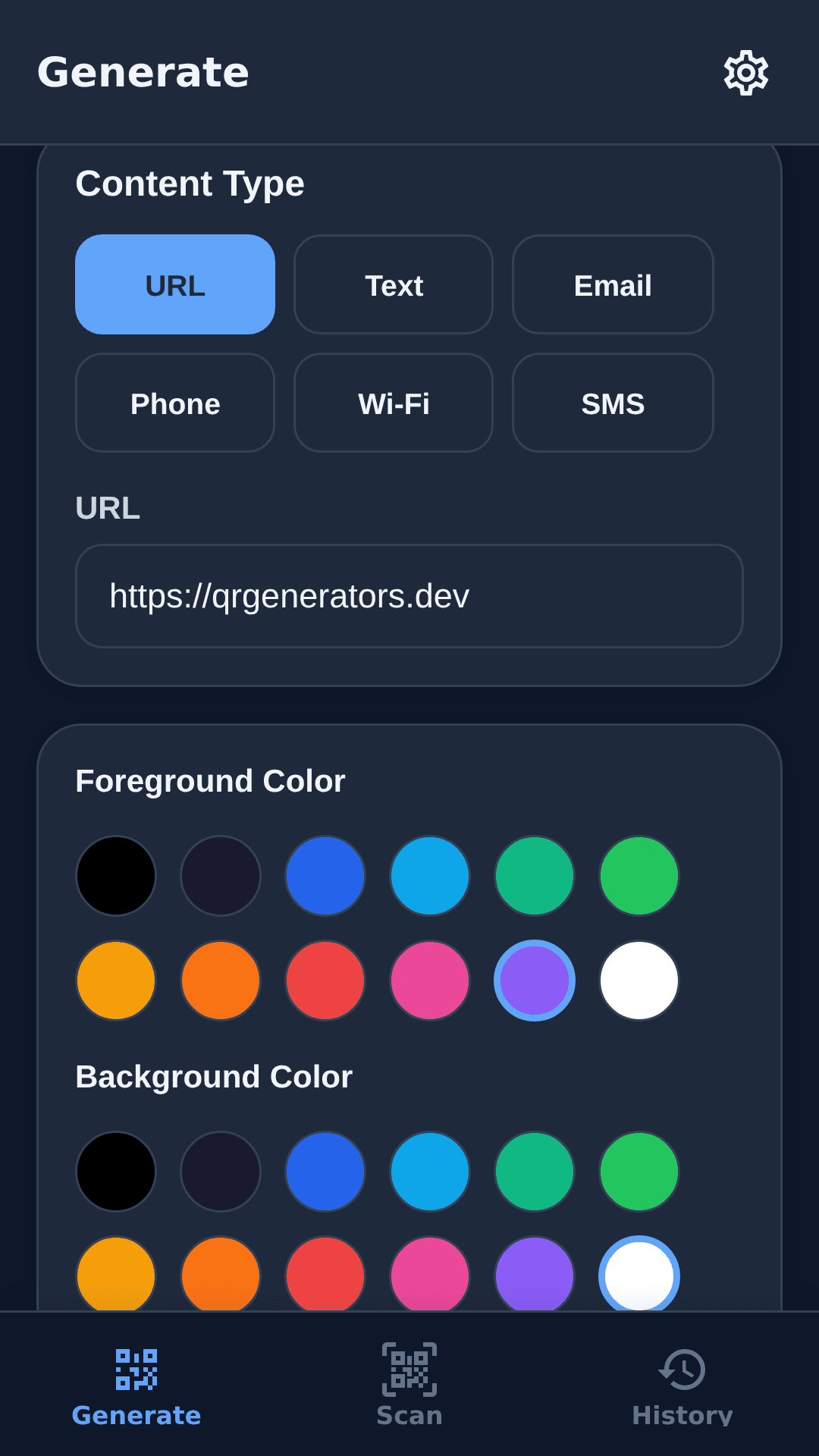
Use a free QR code generator to create QR codes that scan reliably:
- Choose adequate size (2-3 cm minimum for print)
- Use Level Q error correction for logos/damage
- Ensure high contrast (dark on light)
- Print on matte surfaces when possible
- Use dynamic QR codes for updatable links
Key takeaways
- Most failures have physical causes: minimum 1 cm print size (2–3 cm is safer), the code filling 1/3 to 1/2 of the camera frame, and a minimum 3:1 contrast ratio (5:1+ recommended).
- Light and surface rule scanning: even lighting without glare, matte surfaces, and holding parallel to curved surfaces.
- Damage below ~15–30% of the code (depending on error-correction level) often still decodes — but a broken corner finder pattern cannot be recovered.
- Software causes are rarer: QR scanning must be enabled in some camera apps, and old phones may need a dedicated scanner.
When a code still fails after all 15 checks, scan a screenshot of it — if that works, the problem is the physical print, not the code itself.