
June 2, 2026
How to Create a QR Code in 30 Seconds (Step-by-Step Guide)
By Said Ouarrak · Founder
Creating a QR code is easier than you might think. When I set up this site's generator, the whole encoding pipeline runs in the browser — no account, no upload, no payment — and that is exactly how you will use it here: type your content, adjust the design, click Generate. You can go from blank screen to a printable code in under 30 seconds.
Below is the exact workflow I use, including the settings that matter (error-correction level, quiet zone, output format) and the mistakes that cause codes to fail at the print shop.
What You Need
To create a QR code, you only need:
- A device with internet access (computer, tablet, or phone)
- The content you want to encode (URL, text, etc.)
- A QR code generator (like ours, which is free and works entirely in your browser)
That is it. No account creation, no software download, no payment required.
Step 1: Choose Your Content Type
The first step is deciding what kind of content your QR code will contain. Our generator supports five types:
| Content Type | Best For | Example |
|---|---|---|
| URL | Links to websites, landing pages, social media profiles | https://example.com |
| Text | Short messages, instructions, contact info | "Call for appointment" |
| Pre-filled email addresses | hello@example.com | |
| Phone | Click-to-call numbers | +1234567890 |
| WiFi | Share network credentials | NetworkName:password |
Select the type that matches your use case. For most business applications, the URL option is the most versatile.
Step 2: Enter Your Data
Once you have selected the content type, enter the relevant information:
- For URLs, paste the full web address including
https:// - For Email, enter the recipient's email address
- For Phone, include the country code (e.g., +1 for US, +212 for Morocco)
- For WiFi, use the format
SSID:password(network name followed by a colon then the password)
Tip: Double-check your data before generating. While you can always create a new QR code, verifying the data first saves time.
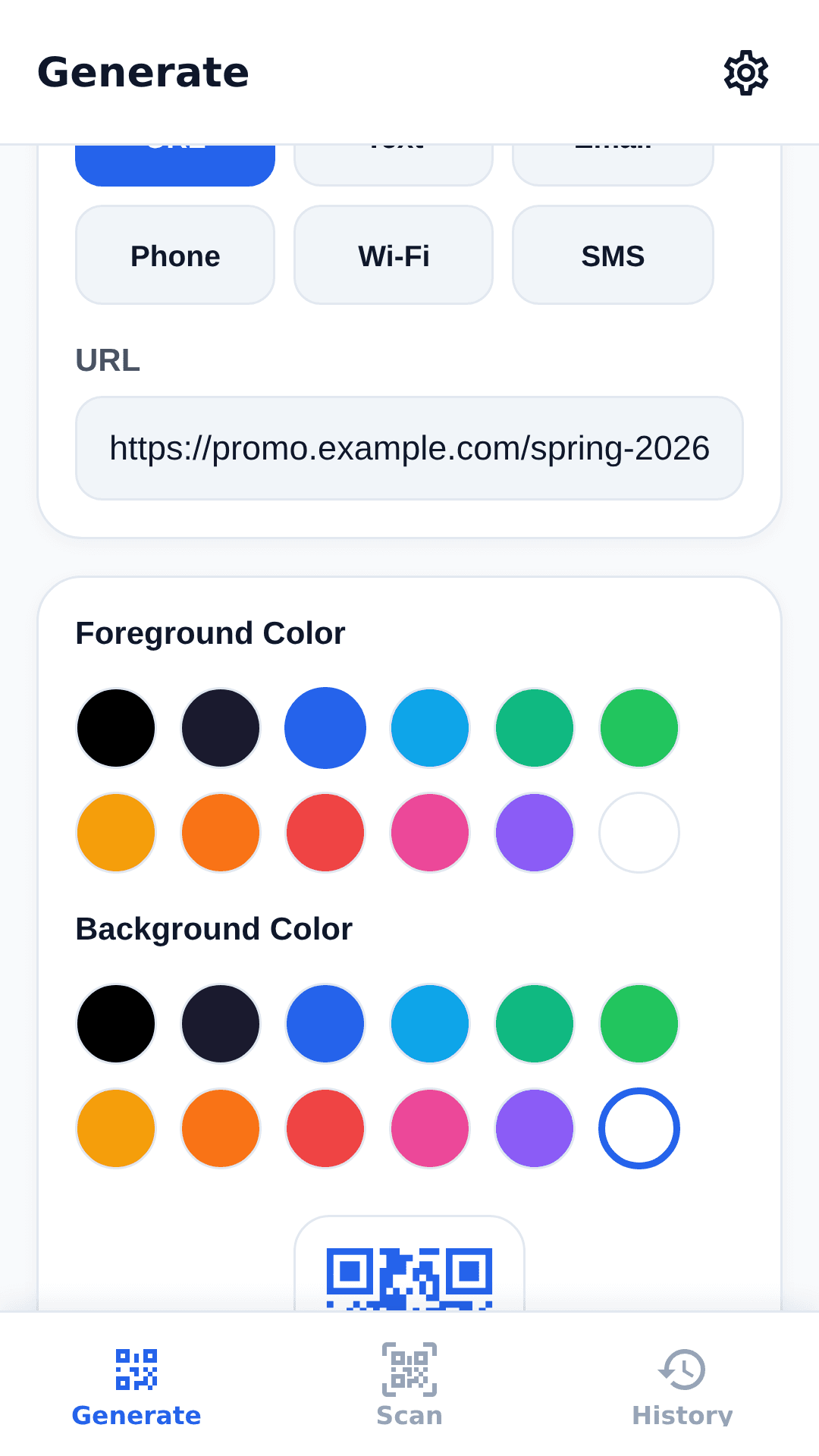
Step 3: Customize the Design
This is where your QR code becomes uniquely yours. You can adjust:
Colors
Change the foreground (dots) and background colors to match your brand. Dark foreground on light background works best for reliable scanning.
Size
Adjust the resolution from 200px to 800px. Larger sizes are better for printing; smaller sizes work for screens.
Error Correction Level
Higher error correction makes the code more resilient to damage but also denser. Use H (Max) if you plan to add a logo.
Logo
Upload your brand logo or any image to place in the center of the QR code. The generator automatically adjusts for this, ensuring the code remains scannable.
Adding a logo increases brand recognition and trust. QR codes with logos see up to 80% more scans than plain black-and-white codes.
Step 4: Generate and Preview
Click the "Generate QR Code" button. The code appears instantly on the right side of the screen.
Take a moment to preview it:
- Test it with your phone's camera
- Check that the colors look correct
- Verify the logo is centered and properly sized
If something does not look right, adjust the settings and generate again.
Step 5: Download Your QR Code
Once you are satisfied with the result, download your QR code in one of two formats:
PNG (Raster)
Best for digital use — websites, social media, presentations, and email signatures. PNG files have a transparent background option and are widely supported.
SVG (Vector)
Best for print — business cards, flyers, posters, menus, and product packaging. SVG files scale to any size without losing quality.
For professional printing, always use SVG. A vector QR code can be scaled to billboard size without pixelation.
Pro Tips for Best Results
Maintain the Quiet Zone
The quiet zone is the empty white border around your QR code. It should be at least 4 modules wide (about 1/10th of the code width). Do not place text, graphics, or other elements in this area.
Test Before Printing
Always scan your QR code with multiple devices before mass printing. Test on both iOS and Android, and in different lighting conditions.
Consider Size and Distance
A QR code should be large enough to scan from a comfortable distance. A general rule: the minimum size should be 1 inch (2.5 cm) for every 10 inches (25 cm) of scanning distance.
| Distance | Minimum Size |
|---|---|
| 10 inches / 25 cm | 1 inch / 2.5 cm |
| 3 feet / 1 m | 3 inches / 7.5 cm |
| 10 feet / 3 m | 10 inches / 25 cm |
Use Dynamic QR Codes for Campaigns
If you plan to track scans or update the destination later, use a dynamic QR code. These store a short URL that redirects to your actual content, allowing you to change the destination without regenerating the code.
Common Mistakes to Avoid
- Low contrast — Light gray on white background is hard to scan
- Too small — A QR code that is too small for the scanning distance
- Ignoring error correction — Using low error correction when adding a logo
- Broken quiet zone — Placing elements too close to the QR code
- Not testing — Printing hundreds of codes without testing them first
Key takeaways
- The full workflow takes under 30 seconds: pick a content type (URL, text, email, phone, or WiFi), enter your data, customize, generate, and download.
- Export SVG for print (scales to billboard size without pixelation) and PNG for screens and email signatures.
- Keep a quiet zone at least 4 modules wide — about one-tenth of the code width — or scanners may misread the edges.
- Follow the sizing rule of 1 inch (2.5 cm) per 10 inches (25 cm) of scanning distance, and always test with both iOS and Android before mass printing.
The four most common failures are low contrast, too-small sizing, broken quiet zones, and skipping the error-correction level when a logo is added — all four are easy to avoid.
Create your QR code now — it is free, private, and takes only 30 seconds.